Catalogues
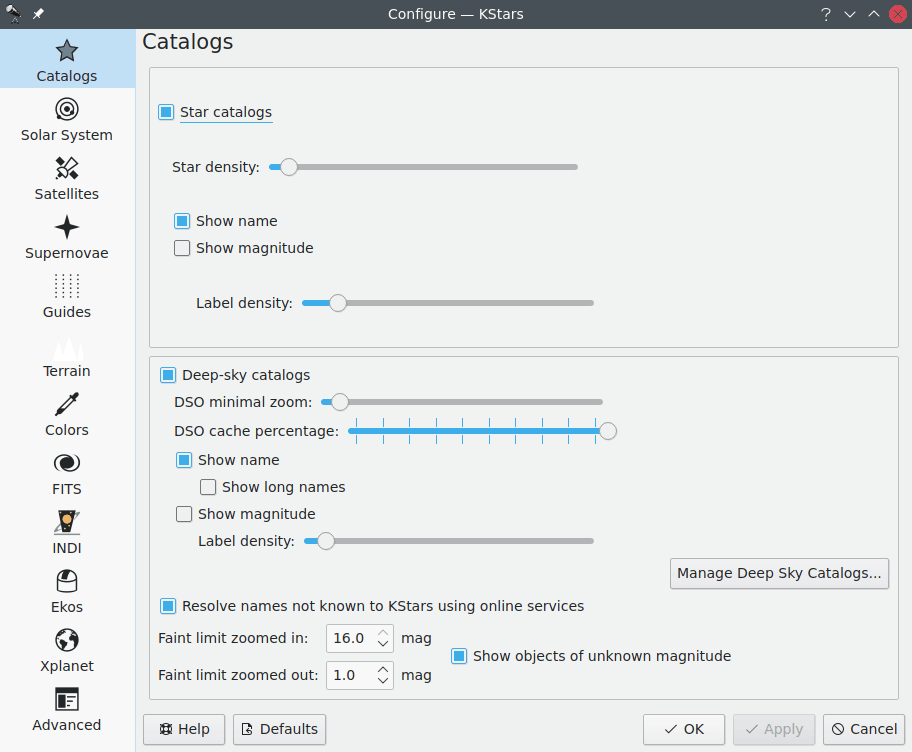
Sur la page Catalogues, vous pouvez configurer les catalogues que KStars affichera, ainsi que la quantité d'information qu'affichera KStars. Par défaut, KStars inclut plus de 300 000 noms d'étoiles connues et inconnues jusqu'à la magnitude 8. Pour les objets du ciel profond, sont inclus les catalogues « NGC », « IC » et « Messier ».
Le catalogue NGC inclut environ 7 840 objets du ciel profond.
Le catalogue IC complète le catalogue NGC avec quelques 5 386 objets supplémentaires.
Vous pouvez installer de nouveaux catalogues avec l'« installateur d'extension ». Vous pouvez l'ouvrir en allant dans le menu Données → Télécharger de nouvelles données…. Vous pouvez choisir à partir d'une liste de catalogues qui inclut (mais n'est pas limité à) :
Le catalogue NGC/IC de Steinicke qui est un catalogue plus complet que le NGC/IC.
Le catalogue des nébuleuses planétaires de Abell contenant 86 nébuleuses planétaires. La magnitude maximale est atteinte par le 47 ième objet dont la valeur est 19,5.
Le catalogue « Sharpless » de la région « HII » (Sh2) contient les régions des nébuleuses diffuses.
Les groupes compacts de Hickson forment un catalogue contenant un groupe compact de 99 galaxies.
Le catalogue Tycho-2 Star contient plus de 2,5 millions d'étoiles les plus brillantes. Il contient des étoiles de magnitude allant de 8,0 à 12,5.
Le catalogue NOMAD USNO contient plus de 100 millions d'étoiles de magnitude 12,5 à 16,5. Veuillez noter que le catalogue Tycho-2 doit être préalablement installé.
Ce qui suit est un résumé des catalogues de KStars :
Nom |
Abréviation |
Nombre d'objets |
Magnitude |
|---|---|---|---|
Catalogue par défaut |
Défaut |
~300 000 |
Jusqu'à la magnitude 8 |
Tycho-2 |
Tycho2 |
plus de 2,5 millions |
8,0 - 12,5 |
Ensemble de données NOMAD |
USNO NOMAD |
100 millions |
12,5 - 16,5 |
Nom |
Abréviation |
Nombre d'objets |
Magnitude |
|---|---|---|---|
Nouveau catalogue général (NGC) des nébuleuses et des amas d'étoiles (OpenNGC) |
NGC |
7 840 |
|
Steinicke NGC/IC |
|||
Catalogue Abell des nébuleuses planétaires |
86 |
Jusqu'à la magnitude 19,5 |
|
Catalogue Sharpless des régions HII |
Sh2 |
||
Groupes compacts de Hickson |
99 |
Note
Une liste probablement plus à jour peut être trouvée dans la documentation du dépôt de catalogue.
La section Étoiles vous permet de gérer la manière dont les étoiles sont affichées dans KStars. Vous pouvez choisir d'afficher ou non les étoiles en cochant Catalogues d'étoiles. En cochant, vous ferez apparaître plusieurs options. Par exemple le nombre d'étoiles peut être configuré avec le curseur Densité des étoiles. Vous pouvez aussi configurer KStars pour afficher le nom des étoiles et leur magnitude. Le nom des étoiles est affiché à côté des étoiles brillantes. Pour afficher le nom des étoiles plus pâles, augmentez le curseur de la Densité des étiquettes.
Sous la section des étoiles, la section Objets du ciel profond contrôle l'affichage de plusieurs catalogues d'objets non stellaires. Vous pouvez (dés)activer l'affichage des objets du ciel profond et contrôler leur nom et leur magnitude. Par défaut, la liste des objets du ciel profond inclut les catalogues Messier, NGC et IC. Des catalogues additionnels sont disponibles dans le menu Données → Télécharger de nouvelles données… où vous pouvez télécharger des catalogues fournit par l'équipe et la communauté de KStars dans le dépôt de catalogues. Le curseur Zoom minimal CP contrôle le niveau de zoom minimal pour l'affichage des objets du ciel profond. Augmenter le niveau de zoom minimal peut augmenter les performances lors des déplacements extérieurs de zoom. Le curseur Pourcentage de cache CP régule le pourcentage du catalogue maître conservé en cache mémoire. Si vous observez des problèmes de mémoire, essayez de diminuer cette valeur. Le curseur Densité des étiquettes contrôle la densité perçue des objets du ciel profond. Si les étiquettes se chevauchent et la carte de ciel devient trop chargée, essayer de diminuer cette valeur. Le curseur zoom de la limite pâle régule la limite de magnitude affichée sur la carte du ciel (les magnitudes élevées sont les plus pâles). Si Afficher les objets de magnitude inconnue est coché, les objets de magnitude inconnue sont toujours affichés.
La prochaine section expliquera en détail comment les catalogues du ciel profond (CP) fonctionnent dans KStars et comment ils sont gérés.
La base de données du catalogue du ciel profond (CP)
Note
Cette section aspire à introduire la base de données de catalogues de KStars en des termes simples mais techniques. Elle peut être sautée sans perdre l'essentiel mais aide à comprendre comment gérer et créer des catalogues personnalisés.
Les catalogues du ciel profond dans KStars sont de simples tables « SQL » (SQLite3) de bases de données. Chaque catalogue est représenté par sa propre table qui contient tous les objets et une entrée dans une table des métadonnées du catalogue. De plus, les catalogues peuvent être importés ou exportés dans des fichiers de base de données autonomes.
Chaque objet possède les propriétés usuelles telles que nom et coordonnées mais aussi deux identités. La première est l'identifiant unique de l'objet en question et est calculé par un hachage de tous les champs de l'objet et de l'identifiant du catalogue. Comme des objets peuvent appartenir à plusieurs catalogues, chaque objet possède un identifiant additionnel (OID) qui identifie l'objet physique et peut être partagé par plusieurs objets de différents catalogues.
Afin d'accélérer la consultation, tous les catalogues activés sont fusionnés dans une table principale. Chaque catalogue possède un nombre de priorité et si plusieurs objets avec le même OID sont demandés, celui dont le catalogue a la plus haute priorité sera chargé. Les objets du catalogue principal sont ensuite dessinés sur le ciel et sont disponibles dans tout KStars.
Pour le moment, la déduplication (l'affectation des OID) n'est gérée que par les outils du dépôt de paquets des catalogues. Le but de cet ensemble d'outils est de pouvoir reproduire la compilation des catalogues dans un environnement homogène. Chaque catalogue est implémenté dans un module python et fournit des méthodes standards pour acquérir des données, les analyser et trouver des doublons dans d'autres catalogues. Tous les catalogues téléchargeables sont implémentés de cette manière. Si vous voulez créer votre propre catalogue à mettre à disposition de KStars, il est fortement recommandé de le créer comme un paquet dans ce dépôt. Les outils à disposition sont tellement flexibles que cela devrait bien fonctionner pour vous. Pour davantage d'informations sur la manière de procéder, veuillez lire la documentation sur les dépôts de catalogues. Si vous n'êtes pas à l'aise avec la programmation en Python, vous pouvez demander l'ajout d'un catalogue en ouvrant un ticket sur la page du dépôt ou en contactant les gestionnaires. KStars fournit aussi des moyens de créer des catalogues personnalisés en entrant manuellement les données ou en important des tables au format CSV mais cela est moins flexible et ne permet pas la déduplication.
L'interface graphique de gestion des catalogues
L'interface graphique de gestion des catalogues se trouve dans le menu Données → Gérer les catalogues CP… et est affiché ci-dessous.
L'interface de gestion du catalogue du ciel profond.
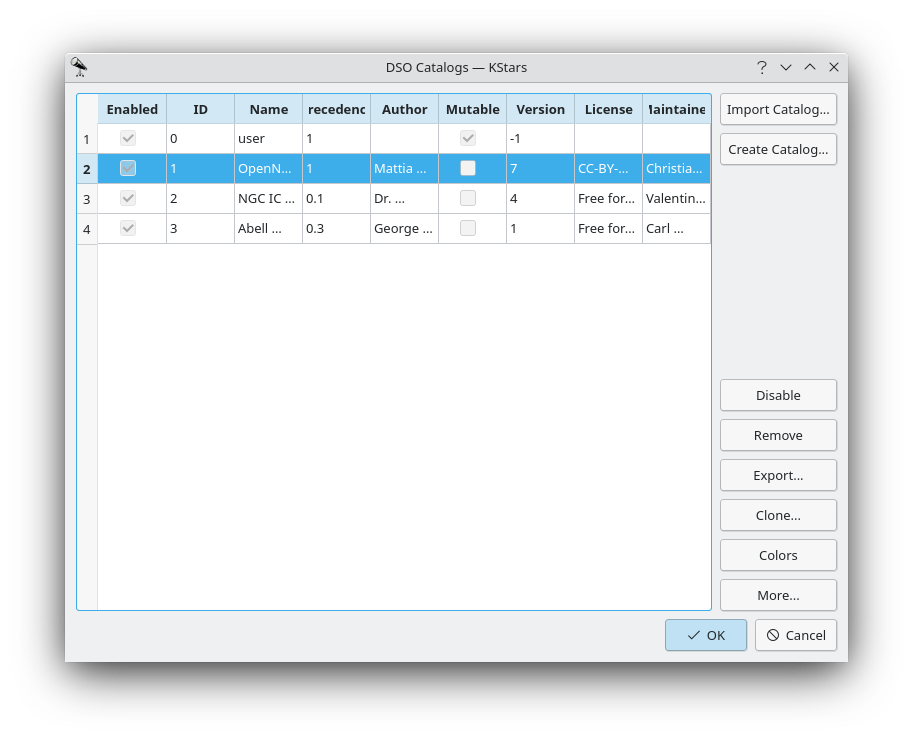
Une liste de catalogues est affichée sur la partie gauche. Dans cette liste vous pouvez lire les propriétés essentielles du catalogue, en incluant son état d'activation, son identifiant ID et son nom. La colonne Modifiable indique si un catalogue peut être modifiable ou non. Les catalogues téléchargés du dépôt de catalogues à partir du menu Données → Télécharger de nouvelles données… sont en général immuables alors que ceux créés par des utilisateurs ne le sont pas. Vous pouvez toujours Cloner un catalogue pour le rendre modifiable.
Les boutons dans le coin supérieur droit vous permettent d'ajouter des catalogues à la base de données.
- Importer un catalogue…
Importer un catalogue au format .kscat depuis un fichier.
Cela est généralement utilisé pour essayer des nouvelles versions de catalogues qui ne sont pas encore sur les serveurs de téléchargement.
Les boutons dans le coin inférieur droit permettent d'ajouter, modifier et explorer les catalogues. Leurs actions se réfèrent toujours au catalogue courant (la rangée en surbrillance sur la gauche).
- Créer un catalogue…
Créer un nouveau catalogue. Voir la section intitulée "Création d'un nouveau catalogue".
- Activer/Désactiver
Activer ou désactiver un catalogue.
Cela est reflété sur la carte du ciel à la fermeture de l'interface graphique de gestion des catalogues.
- Supprimer
Supprimer un catalogue de la base de données des catalogues.
Cela est reflété sur la carte du ciel à la fermeture de l'interface graphique de gestion des catalogues.
- Exporter…
Exporter un catalogue dans un fichier .kscat.
Le fichier résultant peut être importé grâce au bouton
Importer un catalogue….- Cloner…
Faire une copie exacte du catalogue et l'insérer dans la base de données.
Cela est utile si vous souhaitez apporter des modifications à un catalogue immuable.
Note
Veuillez noter que ce n'est pas la méthode recommandée pour modifier des catalogues qui sont fournit par le dépôt de paquets de catalogues, c'est-à-dire les catalogues téléchargés via le menu
Données→Télécharger de nouvelles données….CouleursOuvrir l'éditeur de couleur de catalogue (voir la section intitulée « Éditeur de couleurs de catalogue »).
Cela ouvrira une boite de dialogue où seront affichées les couleurs dans lesquelles les objets seront affichés, et cela pour chaque thème de couleurs.
- Davantage…
Ouvrir la boite de dialogue de détails de catalogue. (voir la section intitulée « Les détails d'un catalogue »).
Là vous pouvez voir le contenu du catalogue ainsi que des métadonnées. Outre cela, vous pouvez aussi modifier son contenu (s'il est modifiable bien sûr).
Créer un nouveau catalogue
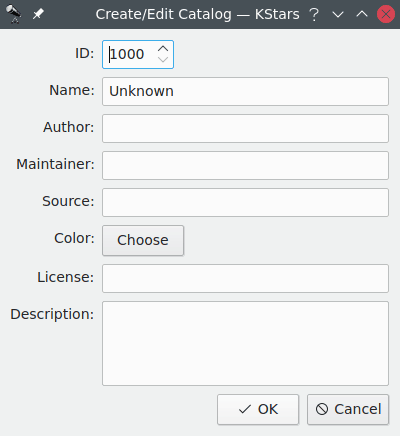
Cette boite de dialogue est atteinte par l'interface graphique de gestion des catalogues (voir la section intitulée « L'interface graphique de gestion des catalogues »). Le champ ID sera automatiquement choisi mais peut être modifié. Le champ Couleur configure la couleur d'affichage des objets du catalogue. Toutes les autres valeurs sont facultatives ou possèdent des valeurs par défaut raisonnables.
En cliquant sur Ok vous ajouterez à la base de données un catalogue vide avec les métadonnées indiquées que vous pourrez ensuite alimenter avec les objets. (Voir la section intitulée « Les détails d'un catalogue » et la section intitulée « Importation CSV (et formats similaires) ».)
Éditeur de couleurs de catalogue
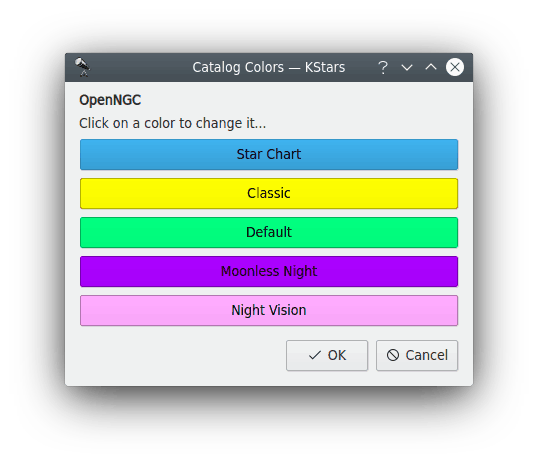
Cette boite de dialogue atteinte par l'interface graphique de gestion de catalogues (voir la section intitulée « L'interface graphique de gestion des catalogues »). Chaque bouton représente la couleur d'affichage des objets pour un thème de couleur spécifique. Un clic sur un bouton fera apparaître un sélectionneur de couleurs pour choisir une couleur. La couleur des boutons est initialisée avec les couleurs par défaut des spécifications du catalogue. La couleur « par défaut » est celle qui sera choisie pour le catalogue s'il n'existe aucun groupe de couleurs pour un thème de couleurs.
Les détails d'un catalogue
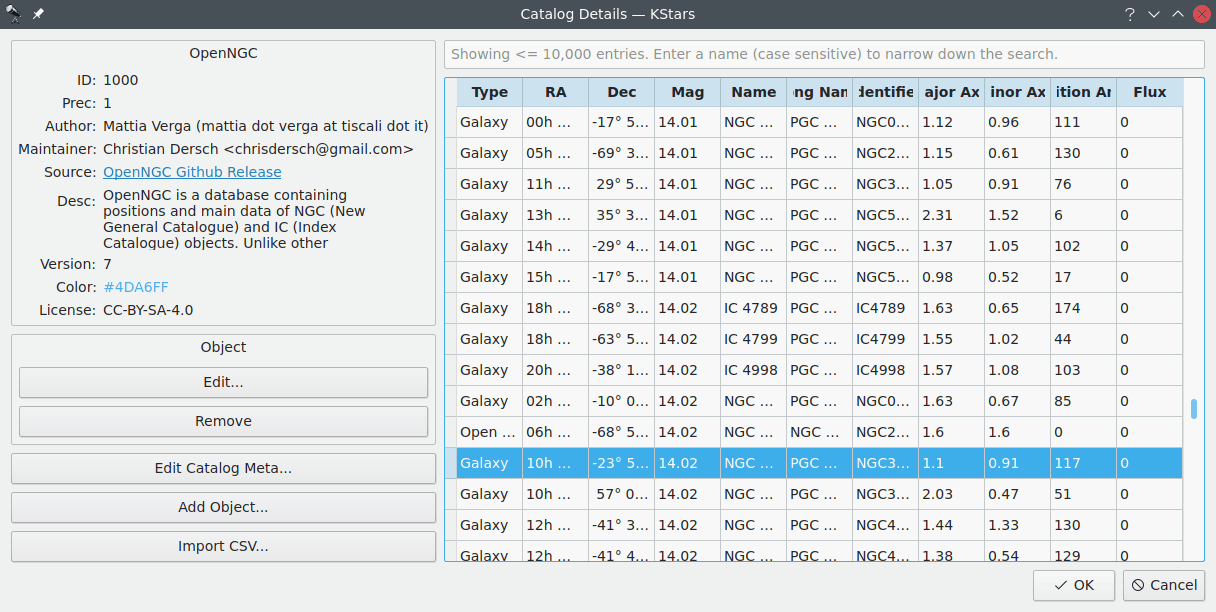
Cette boite de dialogue atteinte par l'interface graphique de gestion de catalogues (voir la section intitulée « L'interface graphique de gestion des catalogues »). Dans le coin en haut à gauche sont affichées les métadonnées du catalogue. Sur la droite, une table avec tous les objets du catalogue est affichée. La ligne de recherche au-dessus de la table permet de filtrer les objets par nom. Un double-clic sur une rangée ouvre la fenêtre d'informations détaillées de l'objet.
La sélection d'une rangée active le menu Objet de gauche. La sélection de plusieurs rangées réalise l'action d'un objet sur tous les objets sélectionnés.
- Modifier…
Modifier l'objet du catalogue. (Voir la section intitulée "Ajout/modification d'objets").
- Supprimer
Supprimer l'objet du catalogue.
Les options générales des catalogues sont situées sous la section Objet
- Modifier les métadonnées d'un catalogue…
Modifier les métadonnées du catalogue affichées en haut à gauche. Cela ouvrira la boite de dialogue décrite dans la section intitulée « Créer un nouveau catalogue ».
- Ajouter un objet…
Ajouter un objet au catalogue. (Voir la section intitulée "Ajout/modification d'objets".)
- Importer CSV…
Importer des objets à partir d'un fichier au format texte (csv, tsv, etc.) dans le catalogue. (Voir la section intitulée « Importation CSV (et formats similaires) ».)
Ajout et modification des objets
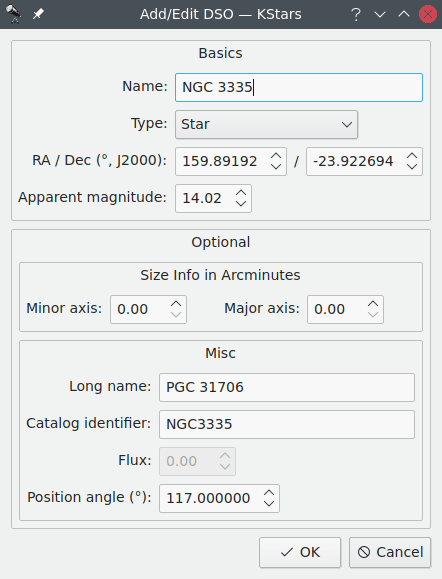
Cette boite de dialogue permet de créer ou de modifier un objet du ciel profond (CP). La section Essentiel contient les champs qui doivent être remplis.
NomLe nom de l'objet qui sera affiché dans le ciel.
TypeLe type de l'objet.
AD/DEC (°, J2000)Les coordonnées de l'objet en degrés et par rapport à l'époque J2000.
Magnitude apparenteLa magnitude apparente de l'objet.
La section Optionnel contient des champs de données qui sont facultatifs et est divisée en deux sous-sections. Ils sont déjà remplis et peuvent être laissés avec leur valeur par défaut.
La sous-section Informations de taille en minutes d'arc. L'objet est modélisé par une ellipse qui est décrite par ses petits et grands axes.
La sous-section Divers.
Nom longUn nom plus long, plus descriptif.
Un nom long est généralement quelque chose comme « galaxie d'Andromède » pour l'objet M31. Il peut aussi contenir des désignations alternatives dans d'autres catalogues.
Identifiant du catalogueUn identifiant interne du catalogue.
Par exemple dans la capture d'écran ci-dessus, l'objet vient du catalogue « OpenNGC » où chaque rangée est identifiée par « NGCXXXX ».
FluxLe flux de l'objet. Ne s'applique qu'aux sources radio.
Angle de position (°)Si un objet est étendu, il doit avoir une certaine orientation dans le ciel. L'angle de position est défini comme l'angle de son grand axe et une ligne droite vers le pôle Nord.
Importation CSV (et formats similaires)
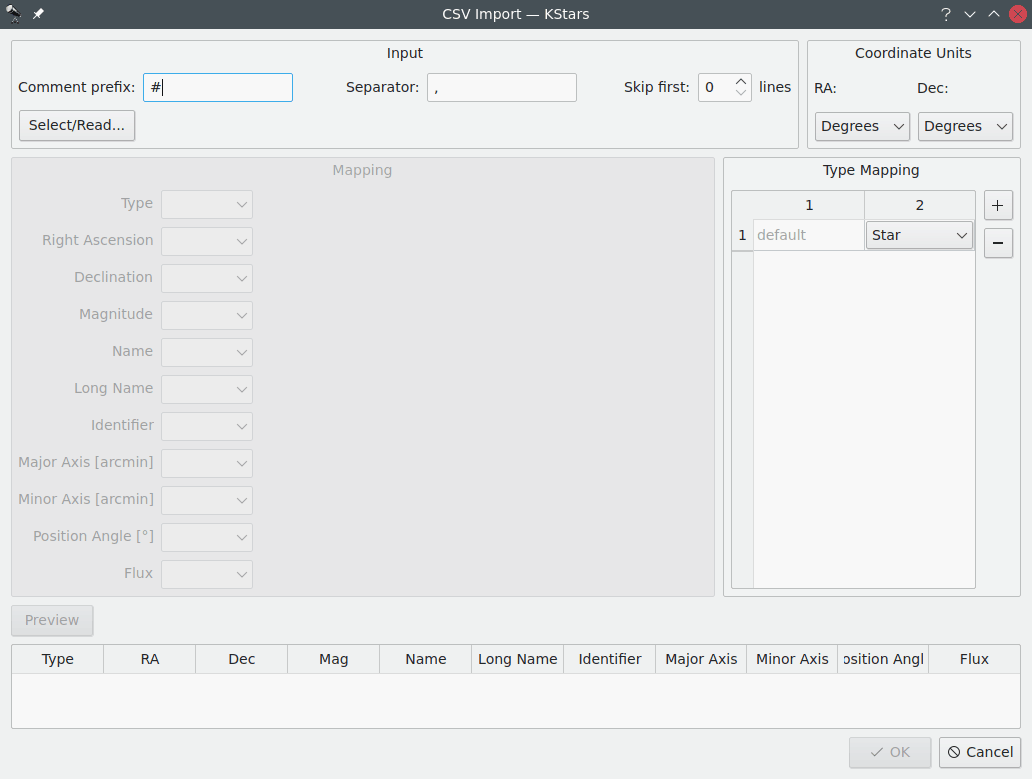
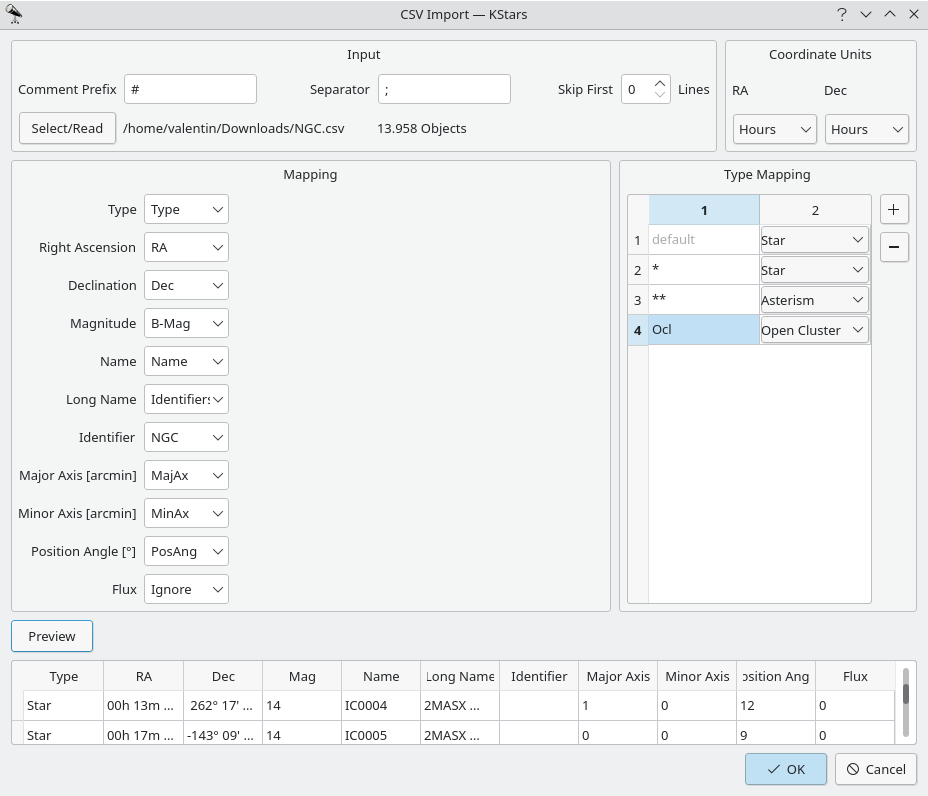
La capture d'écran ci-dessus montre la boite de dialogue d'importation dans son état par défaut. Dans la section Entrée vous pouvez configurer l'analyseur csv. Le Préfixe de commentaire est le caractère qui indique qu'une ligne est commentée. Le Séparateur devra être ajusté pour correspondre à celui du fichier d'entrée. Il s'agit souvent de « , » ou de « ; » mais d'autres séparateurs peuvent être utilisés. Enfin, vous pouvez choisir de sauter un certain nombre de lignes au début du fichier. Le bouton Sélectionner vous permet de choisir le fichier csv à lire avec les configurations ci-dessus. Ensuite, la boite de dialogue aura l'apparence de la capture d'écran ci-dessous.
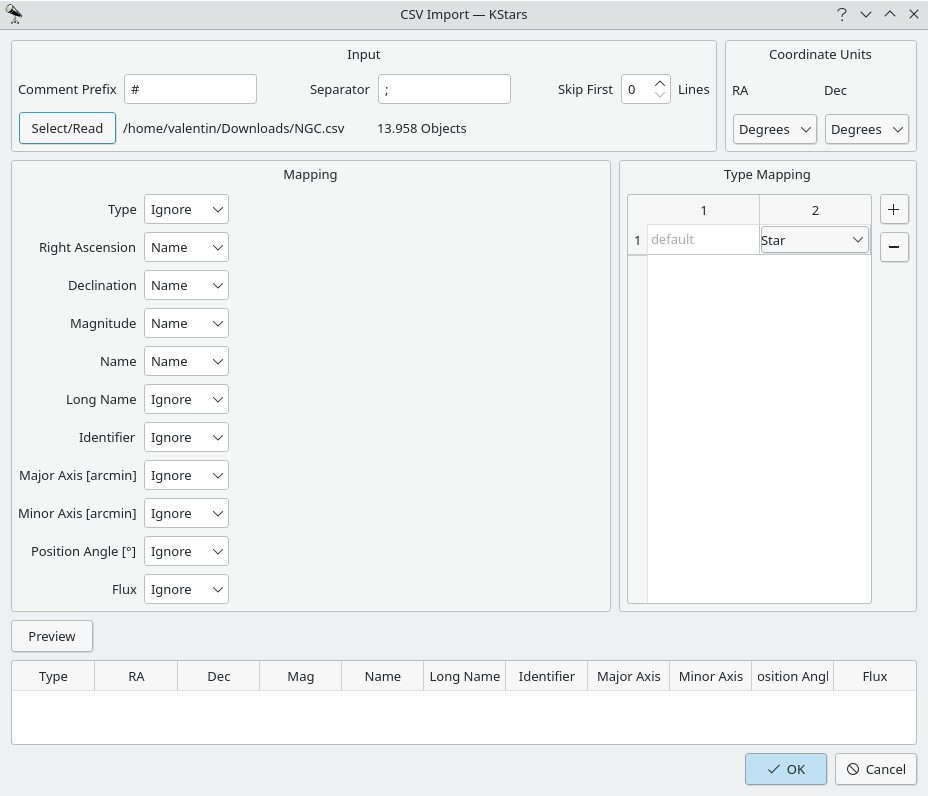
Dans la partie en haut à droite vous pouvez choisir si les coordonnées sont exprimées en degrés ou en heure/minute/seconde. La section Correspondance vous permet de faire correspondre les colonnes du fichier CSV avec les champs de données dans KStars. Choisir Par défaut assignera la valeur par défaut pour ce champ. Si vous indiquez votre propre texte, celui-ci sera utilisé comme valeur pour chaque objet lu. La section Type de correspondance fait correspondre des chaines au type de l'objet. Vous pouvez ajouter ou retirer des correspondances en cliquant sur + ou -. Lorsque vous avez terminé, vous pouvez tester vos réglages en cliquant sur Aperçu pour lire les quelques premiers objets du fichier csv. Si vous êtes satisfait, vous pouvez cliquer sur Ok pour importer tout le catalogue ou alors ajuster vos réglages et les vérifier à nouveau. Comme référence vous pouvez voir la correspondance pour un catalogue OpenNGC dans la capture d'écran ci-dessous.