
Assistant IA (MCP)
Introduction
Ekos intègre un serveur MCP (Model Context Protocol). MCP est un standard ouvert qui permet à des assistants et agents IA de découvrir et d'appeler les outils exposés par une application. Une fois le serveur MCP activé, un assistant IA peut observer votre matériel — état de la connexion, position de la monture, dernière image capturée — et, si vous l'y autorisez, piloter la monture et le moteur de mise au point, résoudre des cibles du catalogue, et plus encore.
N'importe quel client compatible MCP peut utiliser le serveur immédiatement : il parle le JSON-RPC 2.0 standard par HTTP, avec les méthodes habituelles initialize, tools/list et tools/call. Aucun code client spécifique à KStars n'est nécessaire.

Activer le serveur
Le serveur se configure dans la boite de dialogue des réglages d'Ekos, dans l'onglet MCP.
Cochez Activer le serveur MCP pour le démarrer. Le serveur démarre automatiquement avec Ekos dès que cette option est activée.
Port sélectionne le port TCP d'écoute. La valeur par défaut est 8765 ; n'importe quel port entre 1024 et 65535 peut être utilisé.
Le voyant d'état à côté du port indique si le serveur est actuellement en écoute.
Note
Le serveur n'écoute que sur la machine locale (127.0.0.1). Il n'est pas accessible depuis le réseau. Pour l'utiliser depuis une autre machine, vous devez mettre en place votre propre tunnel (par exemple une redirection de port SSH) et comprendre les implications de sécurité que cela entraîne.
Authentification et jetons
Chaque requête doit porter un jeton d'authentification (Bearer). Deux jetons sont gérés dans l'onglet MCP, chacun avec des boutons afficher, copier et Régénérer :
Le champ Jeton contient le jeton à accès complet. Les clients qui le présentent peuvent appeler tous les outils activés.
Le champ Jeton en lecture seule contient un jeton distinct, limité aux outils en lecture seule. Donnez celui-ci aux assistants qui doivent seulement observer le matériel, sans jamais le piloter.
Les jetons sont stockés dans le trousseau système (sous le nom de service kstars), jamais dans des fichiers de configuration en clair. Régénérer un jeton invalide immédiatement le précédent.
Pour connecter un client, pointez-le vers http://127.0.0.1:8765/mcp et transmettez le jeton comme identifiant HTTP Bearer standard. Les requêtes sont des messages JSON-RPC 2.0 envoyés en POST. Par exemple, pour appeler l'outil ekos_status avec curl :
curl -s http://127.0.0.1:8765/mcp \
  -H "Authorization: Bearer <your token>" \
  -H "Content-Type: application/json" \
  -d '{"jsonrpc": "2.0", "id": 1, "method": "tools/call",
       "params": {"name": "ekos_status", "arguments": {}}}'
La réponse est une enveloppe JSON-RPC dont le champ result porte le résultat de l'outil — ici l'état de la connexion INDI, le profil actif et les périphériques connectés.
Un flux Server-Sent Events est disponible sur /mcp/stream. Chaque connexion est limitée à 60 requêtes.
Contrôles de sécurité
Avertissement
Un jeton à accès complet permet à un agent IA de piloter votre monture et votre moteur de mise au point. Sur un matériel en fonctionnement, traitez ce jeton comme un mot de passe : préférez le jeton en lecture seule dès que l'observation suffit, et vérifiez quels outils sont activés avant de confier le contrôle à un agent.
Trois mécanismes limitent ce qu'un client connecté peut faire :
Mode lecture seule (refuse les outils de contrôle du matériel). Une fois coché, le serveur refuse tous les outils de modification pour tous les clients, quel que soit le jeton présenté.
Le jeton en lecture seule. Les clients qui s'authentifient avec lui peuvent seulement appeler les outils marqués en lecture seule, même quand le mode lecture seule est désactivé.
L'arborescence Outils disponibles. Tous les outils exposés par le serveur y sont listés, regroupés par famille, avec une case à cocher par outil et par famille. Les outils décochés sont entièrement masqués aux clients : ils disparaissent de
tools/listet les appels vers eux sont rejetés.
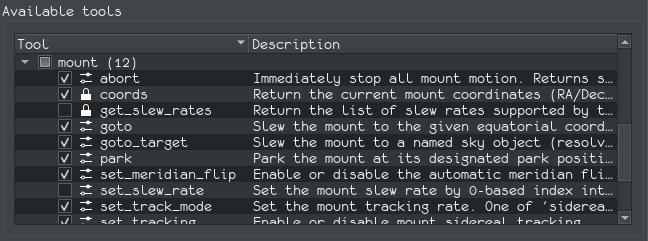
Dans l'arborescence, une icône de cadenas marque les outils en lecture seule et une icône d'engrenage marque les outils qui modifient l'état du matériel. Les infobulles indiquent aussi les outils dont l'effet est difficile à annuler (comme mount_sync), en suivant les indications d'annotation de la spécification MCP.
Référence des outils
Les tableaux ci-dessous listent les outils actuellement fournis avec KStars. La colonne Accès indique lecture pour les outils qui se contentent d'observer le matériel et contrôle pour ceux qui modifient son état.
État d'Ekos
Outil |
Rôle |
Accès |
|---|---|---|
|
État actuel de la connexion INDI/Ekos, profil actif et noms des périphériques connectés. |
lecture |
Catalogue
Outil |
Rôle |
Accès |
|---|---|---|
|
Recherche dans les catalogues de KStars par nom. Renvoie les objets correspondants avec leurs noms canoniques, types, coordonnées J2000 et magnitudes. Prend en charge la correspondance partielle ou exacte, un filtre de type et une limite de magnitude. Utilisez-le pour résoudre un nom comme « M42 » vers sa forme canonique « M 42 » avant de pointer. |
lecture |
Monture
Outil |
Rôle |
Accès |
|---|---|---|
|
AD/DEC, Alt/Az, angle horaire, côté du pied de la monture et état du suivi actuels. |
lecture |
|
Liste les taux de pivotement pris en charge par le pilote, ainsi que celui actuellement sélectionné. |
lecture |
|
Pointe vers des coordonnées équatoriales (AD en heures, Dec en degrés). |
contrôle |
|
Pointe vers un objet nommé, résolu par KStars (nom canonique, par exemple « M 42 »). |
contrôle |
|
Synchronise le modèle de pointage de la monture sur les coordonnées données. Difficile à annuler — une synchronisation erronée corrompt le modèle de pointage. |
contrôle |
|
Parque la monture à sa position de parcage, ou la déparque pour l'utiliser. |
contrôle |
|
Arrête immédiatement tout mouvement de la monture. |
contrôle |
|
Active ou désactive le suivi sidéral. |
contrôle |
|
Sélectionne le taux de suivi : sidéral, lunaire, solaire ou personnalisé. |
contrôle |
|
Sélectionne un taux de pivotement par son index dans la liste du pilote. |
contrôle |
|
Active ou désactive le retournement au méridien automatique et définit son décalage d'angle horaire. |
contrôle |
Moteur de mise au point
Outil |
Rôle |
Accès |
|---|---|---|
|
Nom du moteur de mise au point, position actuelle et maximale, et indicateurs de capacités. Un paramètre |
lecture |
|
Déplace vers une position en pas absolue, validée par rapport au maximum du pilote. Ne doit pas être appelé pendant qu'une mise au point automatique Ekos est en cours. |
contrôle |
|
Déplace d'un nombre signé de pas (positif vers l'extérieur, négatif vers l'intérieur ; le sens dépend du pilote). Ne doit pas être appelé pendant qu'une mise au point automatique Ekos est en cours. |
contrôle |
|
Arrête tout mouvement du moteur de mise au point en cours. |
contrôle |
Accès aux images
Ces outils voient les images de tous les producteurs : la file d'acquisition, la mise au point, l'alignement, l'alignement polaire et les acquisitions ponctuelles. Sur un matériel à plusieurs caméras, un paramètre camera optionnel permet de sélectionner un périphérique ; par défaut, l'image la plus récente toutes caméras confondues est renvoyée.
Outil |
Rôle |
Accès |
|---|---|---|
|
Métadonnées de l'image la plus récemment capturée : chemin du fichier, caméra, exposition, filtre, cible, horodatage, température du capteur, HFR, nombre d'étoiles et dimensions. |
lecture |
|
Un aperçu JPEG encodé en base64 de l'image la plus récente, dimensionné pour les modèles capables de vision (512 pixels sur le plus grand côté par défaut, 1024 au maximum). |
lecture |